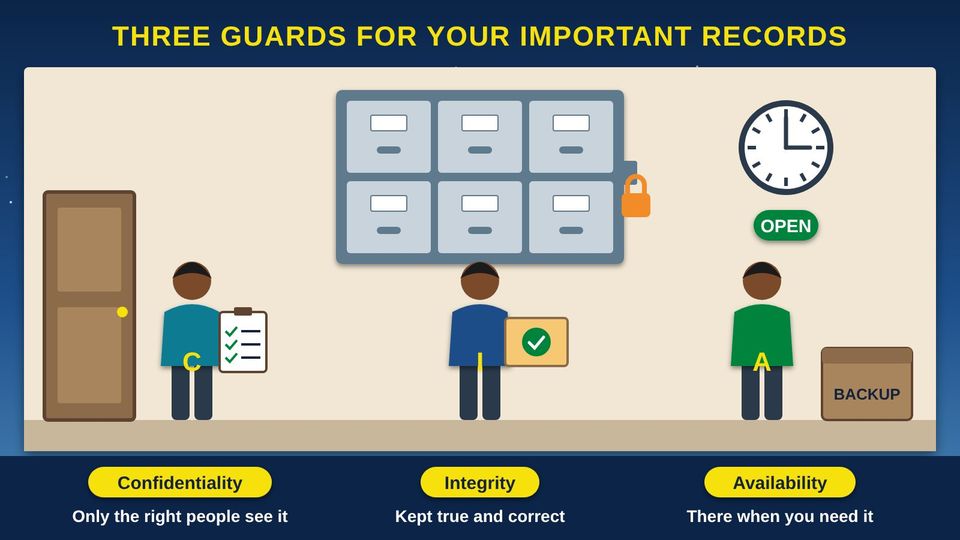
Think about where your family keeps its important papers: birth certificates, the title to the pickup, letters from the clinic, maybe all in a lockbox in the closet. You keep the box locked so strangers cannot read what is inside. You make sure no one changes those papers. And you keep the box where you can find it fast when someone asks for a copy. Today, many of the same papers live in email, on our phones, and in online accounts. Scammers knock on those doors every day, by email, text, phone call, and pop-up. This class shows you how to guard them, one picture at a time.
Start here1The CIA Triad2Safe Credential Management3Safe Browsing4Email ManagementPractice and quizWords and resources
Start hereWelcome
Listen to the story1:16
What you will learn
- Explain the three goals of information security, confidentiality, integrity, and availability, using an everyday example
- Make a long passphrase, use a password manager so you never reuse a password, and turn on MFA (multifactor authentication)
- Spot the warning signs of phishing in email and text messages, and report them
- Browse safely on public Wi-Fi, keep your devices updated, and stop tech support and imposter scams: slow down, hang up, and call back
In this class
1The CIA TriadInformation security protects three things: who can see information, that it stays correct, and that it is there when you need it.1 picture2Safe Credential ManagementPasswords, passphrases, password managers, and a second lock on your accounts.2 pictures3Safe BrowsingPublic Wi-Fi, the padlock, fake download buttons, and the scary pop-up.2 pictures4Email ManagementSpot a fake message, keep your inbox tidy, and know what to do if you were fooled.1 picture✓Practice and quizTry it yourself, the three things to remember, and a short quiz.
Part 1The CIA Triad
Information security protects three things: who can see information, that it stays correct, and that it is there when you need it.
Listen to this part1:50
Read all 4 details
- 1Confidentiality: the guard at the door. The first guard checks a list at the door, so only people with permission see what is inside. NIST (the National Institute of Standards and Technology) calls this confidentiality: "preserving authorized restrictions on information access and disclosure." Your password is the guard at the door of your email.
- 2Integrity: nothing changed without permission. The second guard makes sure no one changes, adds to, or throws away a record without permission. The same experts call this integrity: "guarding against improper information modification or destruction." It means you can trust that a record is true.
- 3Availability: there when you need it. The third guard keeps the office open on time and keeps a backup copy in a safe place, in case of a fire or a broken computer. The same experts call this availability: "ensuring timely and reliable access to and use of information." A record you cannot reach when you need it does not help anyone.
- 4Your accounts are records rooms too. Your email, photos, bank account, and health portal hold your family's important papers in digital form. Security experts call the three guards the CIA triad, for Confidentiality, Integrity, and Availability. It has nothing to do with the spy agency. This class teaches you to be all three guards for your own accounts.
Part 2Safe Credential Management
Passwords, passphrases, password managers, and a second lock on your accounts.
Listen to this part1:41
Read all 5 details
- 1Short and tricky. A password like this one mixes capitals, numbers, and a symbol, but it is only 9 characters long. Short passwords built from a word, a year, and a symbol follow a pattern that is easier to guess than it looks.
- 2Long and simple. A passphrase is a few words in a row that do not belong together. It is long, so it is hard to guess, and it paints a picture, so it is easy for you to remember. The government's security experts say length matters more than odd symbols.
- 315 characters or more. NIST (the National Institute of Standards and Technology) published new password rules in 2025. When a password is the only lock, it should be at least 15 characters long, and sign-in systems should allow at least 64. Sites should check new passwords against lists of passwords that have leaked before.
- 4Spaces are fine. The same rules say sign-in systems should allow spaces, so a passphrase can be real words with spaces between them. They also say sites should not force you to add special symbols, or use password hints and security questions.
- 5Change it if it leaks. You no longer need to change a good password every few months. Change it right away if you learn it was stolen or leaked, or if you typed it into a scam page.
Listen to this picture1:47
Read all 6 details
- 1A locked box for your keys. A password manager is an app that keeps a different strong password for each of your accounts, like a keyring in a locked box. The government's security experts say password managers and autofill are fine to use. It can make new passwords for you and fill them in when you sign in.
- 2One master passphrase. You only need to remember one long passphrase: the one that opens the password manager. Make it at least 15 characters, and never use it anywhere else.
- 3A different key for every door. If you use one password everywhere, one stolen key opens every door: your email, your bank, and your shopping. A different password for each account keeps a leak at one place from spreading to the rest.
- 4MFA: a second lock. MFA (multifactor authentication) adds a second lock, such as a code sent to your phone or an app that asks "Is this you?" CISA (the Cybersecurity and Infrastructure Security Agency) lists turning on MFA as one of four key steps to stay safe online. Start with your email, because it can reset all your other passwords.
- 5Keep your code to yourself. The sign-in code is the second key, so it only works if you keep it. Never read it to someone who calls, texts, or emails you, even if they say they are from your bank or a tech company.
- 6A stolen password is not enough. This person has a stolen password, but the door has two locks. Without the code from your phone, they are stuck outside.
Old password advice and today's advice
In 2025, NIST (the National Institute of Standards and Technology) published new rules for organizations that run sign-in systems. They make good advice for your own passwords too.
| Old advice | Today's advice |
|---|---|
| Mix in capitals, numbers, and symbols | Make it long: at least 15 characters when a password is the only lock |
| Change your password every few months | Change it only if it was stolen or leaked |
| Write a password hint or answer a security question | Skip hints; use a password manager to remember for you |
| Use one strong password you can remember | Use a different password for every account |
| A password is enough | Add MFA (multifactor authentication) as a second lock |
Part 3Safe Browsing
Public Wi-Fi, the padlock, fake download buttons, and the scary pop-up.
Listen to this part1:40
Read all 5 details
- 1The padlock and https. A padlock or "https" in the address bar means your connection to the site is private, so others on the Wi-Fi cannot read it. The FTC (Federal Trade Commission) says most sites now work this way. But it does not mean the site is honest: a scammer's own site can have a padlock too.
- 2Pick the right network. Anyone can set up a network with an official-sounding name. Ask the front desk for the exact name before you join, and pick that one. Skip networks you do not recognize.
- 3The fake download button. Big, bright DOWNLOAD buttons on free websites can be ads, and some lead to harmful software. The real link is often smaller. If you are not sure, do not click, and ask someone you trust.
- 4The fake update warning. A pop-up on a website is not how real updates arrive. This one is trying to get you to install something harmful. Close it and do not click Update.
- 5Real updates come from Settings. Real updates come from your phone or computer's own Settings or app store. CISA (the Cybersecurity and Infrastructure Security Agency) says to "turn on the automatic updates," so your device fixes security problems on its own.
Listen to this picture1:44
Read all 5 details
- 1A fake warning. Tech support scams start with a pop-up, call, or message that says your computer has a virus and gives a number to call. Be very careful with any warning that tells you to call a phone number. In a 2025 report, the FTC (Federal Trade Commission) said people 60 and older reported losing $159 million to tech support scams.
- 2"Do not turn off your computer". This line is a trick to keep you scared and on the page. You can close the browser, or hold the power button to restart. If the pop-up comes back, ask someone you trust for help.
- 3The person on the phone. If you call, the scammer may ask to get into your computer from far away, or ask you to pay to fix a problem that is not real. Do not let them in and do not pay. If you already did, call your bank using the number on your card.
- 4Slow down, hang up, call back. Every scam tries to rush you. Stop, hang up or close the window, then call a person or company yourself, using a number you already know, like the one on your bill, your card, or in your own contacts.
- 5A family code word. Imposter scams were the most reported kind of fraud in 2025, with over $3.5 billion lost, says the FTC (Federal Trade Commission). A caller may pretend to be a grandchild in trouble. Choose a family code word that only your family knows, and ask for it before you send anything.
Part 4Email Management
Spot a fake message, keep your inbox tidy, and know what to do if you were fooled.
Listen to this part2:08
Read all 6 details
- 1A greeting that does not know you. "Dear Customer" is a generic greeting. The FTC (Federal Trade Commission) lists generic greetings as a sign of phishing. A company you really do business with usually knows your name.
- 2A scary problem and a deadline. The message claims suspicious activity and says your power will be shut off. Scammers invent account and payment problems, then add a deadline so you act before you think. Slow down: a real problem will still be there after you check.
- 3A request to confirm your information. Phishing messages often ask you to "confirm" personal or bank information. Do not type your date of birth, card number, or password from a link in a message. If you are worried, call the company using the number on your bill or card.
- 4Where the link really goes. On a computer, rest the mouse pointer on a link or button without clicking to see the real address. Here it goes to a strange address, not the company's own website. On a phone, it is safer to skip the link and open the company's app or website yourself.
- 5Refunds and free gifts. Texts work the same way. Offers of refunds or freebies, and bills you do not recognize, are common signs of a scam. If you do not know about a refund, there probably is not one. Do not tap the link.
- 6Report it, then delete it. Forward phishing email to reportphishing@apwg.org. Forward scam texts to 7726, which spells SPAM on the keypad. You can also report scams to the FTC (Federal Trade Commission) at ReportFraud.ftc.gov. Then delete the message.
Why this matters
The FTC (Federal Trade Commission) says people filed 3 million fraud reports in 2025 and reported losing $15.9 billion. Imposter scams were reported most often, with over $3.5 billion lost. Investment scams cost the most, at $7.9 billion.
People 60 and older reported fraud losses that grew from about $600 million in 2020 to $2.4 billion in 2024. For people 80 and older, the median loss was over $1,600. You are not alone, and it is never too late to report it.
Keep your inbox safe and tidy
- Let your email's spam filter do its job. Mark junk mail as spam so it learns.
- Check your junk or spam folder now and then, in case a real message landed there.
- Do not open attachments or click links you were not expecting. The FTC (Federal Trade Commission) warns they can install harmful software called malware.
- Unsubscribe only from senders you know and trust. For mail from strangers, mark it as spam and delete it instead.
- When a message is about your money or your account, go to the company's website or call the number you already know.
If you think you have been scammed
- 1Stop and stay calm
Stop replying, hang up, or close the window. Being fooled is not your fault; scammers are skilled at this.
- 2Call your bank
If you paid or shared card or bank information, call your bank or card company using the number on your card.
- 3Change your password
If you typed a password into a scam page, change it right away, and turn on MFA (multifactor authentication).
- 4Report it
Report the scam at ReportFraud.ftc.gov. Forward scam texts to 7726 and phishing email to reportphishing@apwg.org.
- 5Tell someone
Tell family or friends what happened. It may stop the same scammer from reaching them.
ReviewPractice and quiz
Listen to the practice steps1:51
Try it at home
About twenty minutes with your own phone or computer. Menu names differ a little from device to device, so ask a family member or a digital navigator if you get stuck.
- Turn on MFA (multifactor authentication) for your email. Sign in to your email account, open its security settings, and look for "two-step verification" or "multifactor authentication." Follow the steps to add your phone.
- Check that automatic updates are on. iPhone or iPad: Settings, then General, then Software Update, then Automatic Updates. Android: Settings, then look for Software update or System update. Windows: Settings, then Windows Update.
- Practice spotting the signs. Go back to the example scam email and text in Part 3, cover the numbers, and find the warning signs yourself. Then look in your own junk folder, without clicking anything.
- Make one new passphrase for your email: four or more words that do not belong together, at least 15 characters long. Do not use it anywhere else.
- Set a family code word. Pick a word your family will remember but a stranger would never guess. Do not post it online. Agree that anyone who calls asking for money must say it.
- Save the reporting info. Write ReportFraud.ftc.gov and "forward scam texts to 7726" on a card and keep it by your phone.
Remember
Long passphrase, never reused, plus a second lock
Slow down before you click or reply
Hang up, then call a number you know
Check what you learned
1. A winter storm knocks out power at the clinic, and for three days no one can open the records they need. Which of the three guards was let down?
The records were not seen by the wrong people or changed, but no one could reach them. Availability means timely and reliable access, which is why backups and plans for outages matter.
2. You are making a new password for your email. Which is the best choice?
Length matters more than odd symbols, and a password used in two places can be stolen once and used twice. A long passphrase used only for email is the safest of the three.
3. A text says your power will be shut off today unless you tap a link and confirm your card number. What should you do?
A scary deadline and a request to confirm information are signs of phishing. Report the text by forwarding it to 7726, then check with the company using a number you already know.
4. At the community center, a shopping site you have never heard of shows a padlock and https. What does the padlock tell you?
The padlock means no one else on the Wi-Fi can read what you send. The FTC (Federal Trade Commission) warns that a scammer's own site can have a padlock too.
5. A caller says he is your grandson, he is in trouble, and he needs money right now. He asks you not to tell anyone. What should you do?
This is a common imposter scam: a rush, a secret, and a request for money. Slow down, hang up, and call back on a number you already know.
ResourcesWords and resources
Words to know
- Information security
- Protecting information, and the accounts and devices that hold it, so the wrong people cannot see it, change it, or keep you from it.
- CIA triad
- Confidentiality, Integrity, and Availability. The three goals of information security. It has nothing to do with the spy agency.
- Confidentiality
- Keeping information private, so only people with permission can see it.
- Integrity
- Keeping information true and complete, so no one changes or destroys it without permission.
- Availability
- Making sure information is there when you need it, on time and reliably.
- Passphrase
- A password made of several words, like a short phrase. A long passphrase is easier to remember and harder to guess than a short, tricky password.
- Password manager
- An app that makes, stores, and fills in a different strong password for each of your accounts. You remember only one master passphrase.
- MFA
- Multifactor Authentication. A second lock on an account, such as a code sent to your phone, in addition to your password. Also called two-step verification.
- Phishing
- Email, texts, or messages that pretend to be from someone you trust, to trick you into giving information or money. Said like "fishing."
- Malware
- Malicious software. Harmful programs that can spy on you, steal information, or damage your device.
- Spam
- Unwanted email or text messages sent to many people at once. Some is just ads; some is phishing.
- Software update
- A free fix from the maker of your phone, computer, or app. Many updates close security holes, so turn on automatic updates.
- Tech support scam
- A fake warning, call, or pop-up that says your device has a problem, so a scammer can get into your computer or your money.
- Imposter scam
- A scam where someone pretends to be a person or group you trust, such as a grandchild, a bank, or a government office.
- Family code word
- A secret word your family agrees on, so you can check that a caller asking for help is really family.
- HTTP / HTTPS
- HyperText Transfer Protocol (Secure). The rules a browser and a web server use to ask for and send pages. The S means the conversation is locked.
Learn more
- CISA: Secure Our WorldFour simple steps to stay safe online, from the Cybersecurity and Infrastructure Security Agency.
- FTC: How to recognize and avoid phishing scamsThe warning signs of phishing and what to do about them.
- FTC: Are public Wi-Fi networks safe?What the padlock means and how to stay safe on public Wi-Fi.
- FTC: ReportFraud.ftc.govReport a scam or fraud to the Federal Trade Commission.
- DigitalLearn: free lessons for beginnersFree, self-paced lessons on using a computer, a phone, and the internet safely.
For teachers and digital navigators: how to run this class (45 minutes)
Lesson plan
- 5 minStart here: read the story and the objectives.
- 5 minThe CIA Triad: ask three volunteers to be the guards and say their job in their own words.
- 10 minSafe Credential Management: everyone writes a practice passphrase they will not use, and counts the characters together.
- 8 minSafe Browsing: explore the Wi-Fi and pop-up pictures. Practice saying out loud: slow down, hang up, call back.
- 8 minEmail Management: in pairs, circle the warning signs on the printed example scam.
- 9 minPractice and quiz together, then the three Remember cards.
What you need
- Projector or large TV for the slides
- Printed handouts, one per person
- A small lockbox or folder of pretend papers for the three-guards story
- Printed copies of the example scam email and text, one per pair
- Index cards for writing the reporting info
- Participants' own phones, tablets, or laptops
Talk about it
- Has anyone here received a message or call that felt like a scam? What made you suspicious?
- Who in your family would you talk to before sending money, and what would your family code word be like?
- How could we help the Elders in our community spot and report scams?
The PowerPoint slides follow this plan, with the story and every picture detail in the speaker notes.
References
- Cybersecurity and Infrastructure Security Agency. (n.d.-a). Secure our world. https://www.cisa.gov/secure-our-world
- Cybersecurity and Infrastructure Security Agency. (n.d.-b). Update software. https://www.cisa.gov/secure-our-world/update-software
- Federal Trade Commission. (n.d.-a). Are public Wi-Fi networks safe? What you need to know. Consumer Advice. https://consumer.ftc.gov/articles/are-public-wi-fi-networks-safe-what-you-need-know
- Federal Trade Commission. (n.d.-b). How to get less spam in your email. Consumer Advice. https://consumer.ftc.gov/articles/how-get-less-spam-your-email
- Federal Trade Commission. (n.d.-c). How to recognize and avoid phishing scams. Consumer Advice. https://consumer.ftc.gov/articles/how-recognize-and-avoid-phishing-scams
- Federal Trade Commission. (2025, December 1). FTC issues annual report to Congress on agency's actions to protect older adults [Press release]. https://www.ftc.gov/news-events/news/press-releases/2025/12/ftc-issues-annual-report-congress-agencys-actions-protect-older-adults
- Federal Trade Commission. (2026, March 25). FTC testifies before the Joint Economic Committee on agency's efforts to combat fraud [Press release]. https://www.ftc.gov/news-events/news/press-releases/2026/03/ftc-testifies-joint-economic-committee-agencys-efforts-combat-fraud
- National Institute of Standards and Technology. (n.d.-a). Availability. CSRC Glossary. https://csrc.nist.gov/glossary/term/availability
- National Institute of Standards and Technology. (n.d.-b). Confidentiality. CSRC Glossary. https://csrc.nist.gov/glossary/term/confidentiality
- National Institute of Standards and Technology. (n.d.-c). Integrity. CSRC Glossary. https://csrc.nist.gov/glossary/term/integrity
- Temoshok, D., Fenton, J., Choong, Y.-Y., Lefkovitz, N., Regenscheid, A., Galluzzo, R., & Richer, J. (2025). Digital identity guidelines: Authentication and authenticator management (NIST Special Publication 800-63B-4). National Institute of Standards and Technology. https://doi.org/10.6028/NIST.SP.800-63b-4
Questions about internet service for your community?
Our team is happy to help guide your community's broadband plan.
Contact our team