Picture the kitchen at the community center on the morning of a big dinner. One cook does the work. She brings flour, beans, and potatoes out of the pantry and sets them on the counter, where they are close and quick to reach. The counter is small, so she puts things away when she is done. At the end of the night the counter is wiped clean, but the pantry keeps everything for next time. Your computer, tablet, and phone work the same way. This class opens them up one picture at a time, so you can understand what is inside and choose a device that fits your needs.
Start here1Your Computer2Your Tablet and Phone3Choosing and Caring for a DevicePractice and quizWords and resources
Start hereWelcome
Listen to the story1:06
What you will learn
- Name the main parts inside a computer, tablet, or phone and say what each one does
- Explain the difference between memory and storage, and why restarting a device often helps
- Read a device spec sheet and choose a device that fits a job like school, a doctor visit, or a job search
- Care for a battery and find your device's storage and battery health in Settings
In this class
1Your ComputerOpen up a laptop and meet the main parts, then see why memory and storage are not the same thing.2 pictures2Your Tablet and PhonePhones and tablets pack most of the same parts into one chip, plus radios and sensors.1 picture3Choosing and Caring for a DeviceRead a spec sheet, match a device to the job, and make the battery last.2 pictures✓Practice and quizTry it yourself, the three things to remember, and a short quiz.
Part 1Your Computer
Open up a laptop and meet the main parts, then see why memory and storage are not the same thing.
Listen to this part1:37
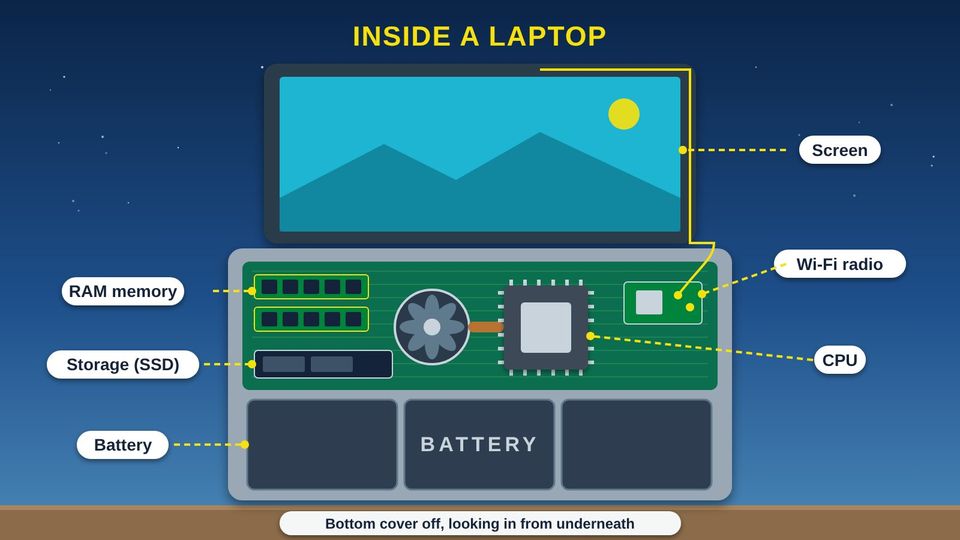
Read all 6 details
- 1CPU: the brain. The CPU (Central Processing Unit) does the thinking. Microsoft says it acts like the device's brain, telling the other parts what to do. It gets warm, so a small fan and a copper pipe carry the heat away.
- 2RAM: short-term memory. RAM (Random Access Memory) holds what you are working on right now: the open apps, web pages, and documents. It is very fast, but everything in it is erased when the device restarts or turns off.
- 3Storage: keeps your things. Storage keeps your photos, files, and apps, even with the power off. This laptop uses an SSD (Solid State Drive), which keeps data on memory chips with no moving parts.
- 4Battery. The battery takes up a big part of the inside. It powers everything when you are away from an outlet. Laptops, tablets, and phones use lithium-ion batteries.
- 5Screen. The screen shows you what the CPU has made: words, pictures, and video.
- 6Radios. A small radio card lets the laptop talk to Wi-Fi and to Bluetooth gadgets like a wireless mouse. Thin wires run from the card up to antennas hidden around the screen.
Listen to this picture1:40
Read all 6 details
- 1The cook is the CPU. The CPU (Central Processing Unit) is the cook. It does all the work: following the recipe, chopping, and mixing. A faster cook gets more done, but only with room to work and food to work with.
- 2The counter is RAM. RAM (Random Access Memory) is the counter. Everything the cook is working on right now sits there, close and quick to reach. A bigger counter lets you keep more apps and web pages open at once without slowing down.
- 3The pantry is storage. Storage is the pantry. It is much bigger than the counter but slower to reach. It keeps your photos, apps, and files, even when the power is off, just like food stays on the shelf overnight.
- 4Opening an app. When you open an app or a photo, the device carries it from the pantry to the counter so the cook can work on it. That is why an app takes a moment to open the first time.
- 5Why restarting helps. When you restart or turn off a device, the counter is wiped clean, but the pantry keeps everything. Over time, apps leave clutter on the counter. A restart clears it, so things often run smoother afterward.
- 6A crowded pantry. When storage is full, there is no room to save a new photo, install an app, or download an update. Moving old videos to a computer or cloud account, or deleting apps you never use, makes room again.
Try a restart first
When a device feels slow or an app is stuck, restart it before anything else. A restart clears the counter (RAM, or Random Access Memory) and gives every app a fresh start. Your photos and files stay safe in storage.
Part 2Your Tablet and Phone
Phones and tablets pack most of the same parts into one chip, plus radios and sensors.
Listen to this part2:00
Read all 5 details
- 1A system on a chip. A phone has no room for separate parts, so most of them are built into one chip, called an SoC (System on a Chip). Apple's M1 chip, for example, combines many parts into a single chip with 16 billion tiny switches called transistors. Tablets are built the same way.
- 2What is inside the chip. Google's Tensor chip holds a CPU (Central Processing Unit) for general work, a GPU (Graphics Processing Unit) for pictures and games, a TPU (Tensor Processing Unit) for AI (artificial intelligence) tasks, an image processor for the camera, and a security core that guards your private data. Some chips, like Apple's M1, also hold the RAM (Random Access Memory) in the same package, right beside the chip.
- 3Radios. Your phone carries several radios: cellular (5G, the fifth generation) to reach the tower, Wi-Fi for home internet, Bluetooth for earbuds, GPS (Global Positioning System) to find your location from satellites, and NFC (Near Field Communication) for tapping to pay.
- 4Sensors. Sensors let the phone notice the world. A proximity sensor turns the screen off when you hold the phone to your ear. A light sensor dims the screen in the dark. Motion and turning sensors flip the picture sideways. A compass points the map, and a barometer measures air pressure.
- 5The battery. The battery takes up most of the space inside a phone. Everything else is packed tightly around it.
Part 3Choosing and Caring for a Device
Read a spec sheet, match a device to the job, and make the battery last.
Listen to this part2:16
Read all 6 details
- 1Chip. This line names the main chip, the SoC (System on a Chip) that holds the CPU (Central Processing Unit). Pixel 10 uses Google's Tensor G5. Chip names are hard to compare. For everyday use, the other lines tell you more.
- 2Memory (RAM). RAM (Random Access Memory) is the counter space. It is measured in GB (gigabytes). Pixel 10 has 12 GB. More RAM lets you keep more apps and web pages open without the device slowing down.
- 3Storage. Storage is the pantry. Pixel 10 comes with 128 GB or 256 GB, and you choose when you buy. If you take a lot of photos and videos, pick the bigger size. Before you buy, check whether you can add more storage later.
- 4Battery. Battery size is measured in mAh (milliamp-hours). A bigger number means the battery holds more charge. Pixel 10's battery is listed as typical 4,970 mAh. How long it lasts also depends on the screen and how you use it.
- 5Screen and wireless. The screen is 6.3 inches, measured corner to corner, and is OLED (Organic Light-Emitting Diode). The wireless line lists its radios: 5G (fifth generation cellular), Wi-Fi 6E, NFC (Near Field Communication), and Bluetooth version 6. A higher Wi-Fi number is a newer version.
- 6Match it to the job. The National Digital Inclusion Alliance (NDIA) says digital inclusion includes devices that meet the needs of the user. So start with the job. School and job applications are easier with a keyboard and bigger screen. A telehealth visit with your doctor needs a good camera, microphone, and charged battery.
Listen to this picture1:13
Read all 5 details
- 1Partial charges. You do not have to run the battery all the way down. If you use 75% on Monday, charge it overnight, then use 25% on Tuesday, you have used one charge cycle in total.
- 2One charge cycle. Apple explains that one charge cycle means using 100% of the battery's capacity, even if it happens over several partial charges. A quick top-up is only part of a cycle, so charge whenever it is handy.
- 3Lithium-ion batteries. Phones, tablets, and laptops use lithium-ion batteries. They charge fast, last a long time, and hold a lot of power for their small size.
- 4Slow, normal wear. A lithium-ion battery holds a little less with each full charge cycle. This is normal for every device.
- 5Check battery health. Many phones and laptops show battery health in Settings. If it is low and the battery runs out fast, ask the maker or a trusted repair shop about a new battery.
What each line on a spec sheet tells you
| Line on the sheet | What it is | A bigger number means |
|---|---|---|
| Chip or processor | The CPU (Central Processing Unit), the cook, often inside an SoC (System on a Chip) | Chip names are hard to compare; the other lines tell you more |
| Memory or RAM | Short-term memory for what is open now (the counter) | More apps and tabs open without slowing down |
| Storage | Long-term space for photos, apps, and files (the pantry) | Room for more photos, videos, and apps |
| Battery (mAh) | Stored power, in milliamp-hours | More charge to use before you plug in |
| Wireless | The radios: cellular, Wi-Fi, Bluetooth, NFC (Near Field Communication) | A higher Wi-Fi number is a newer version |
Before you choose a device
- Write down the jobs you need it for: school, a doctor visit by video, job applications, staying in touch with family.
- Decide if you need a keyboard and a bigger screen (laptop) or something easy to carry (phone or tablet).
- If you take lots of photos and videos, choose more storage.
- If you keep many apps or tabs open, choose more RAM.
- Check that it has a good camera and microphone if you will use video calls.
- Ask whether the battery can be replaced later, and how.
ReviewPractice and quiz
Listen to the practice steps1:33
Try it at home
Fifteen minutes with your own phone, tablet, or computer. Menu names differ a little from device to device.
- Find your storage. iPhone or iPad: Settings, then General, then iPhone Storage or iPad Storage. Android: Settings, then Storage. Windows: Settings, then System, then Storage. Write down how much is used and how much is free.
- Look at what takes the most room. Back up or delete old videos, and remove apps you never use.
- Find your memory (RAM, or Random Access Memory). Windows: Settings, then System, then About, and look for Installed RAM. Mac: the Apple menu, then About This Mac, and look for Memory. iPhones and many Android phones do not show it, so look up your model's spec sheet instead.
- Find your battery health. iPhone: Settings, then Battery, then Battery Health. On many Android phones, look in Settings, then Battery. Write down what it says.
- Restart your device. Notice whether apps feel quicker afterward.
- Search the web for your device's model name plus the word "specs." Find the chip, memory, storage, and battery lines.
Remember
The CPU is the cook doing the work
RAM is the counter; a restart clears it
Storage is the pantry; keep some room free
Check what you learned
1. Your tablet has been slow all week and an app keeps freezing. What is a good first thing to try?
A restart clears RAM (Random Access Memory), the counter, and gives every app a fresh start. Your photos stay safe in storage, so there is no need to delete them.
2. At your grandson's ball game, your phone says "Storage almost full" and will not take a picture. What will help?
Storage is the pantry, and a restart does not empty it. Moving or deleting big videos and apps you never use frees up room for new photos.
3. Two laptops cost the same. Your niece will keep a video class, a document, and many web pages open at once. Which spec line matters most for that?
Everything open right now sits in RAM (Random Access Memory), the counter. More RAM lets her keep more open without slowing down.
4. During a phone call, your screen turns off when you hold the phone to your ear. Which part makes that happen?
A proximity sensor notices when something is close to the screen, so your cheek does not tap buttons during a call.
5. You charge your phone to full, use half on Monday, top it up, then use half again on Tuesday. How many charge cycles is that?
One charge cycle means using 100% of the battery's capacity, even over several partial charges. Half plus half is one cycle.
ResourcesWords and resources
Words to know
- CPU
- Central Processing Unit. The chip that does the work and tells the other parts what to do, like the cook in a kitchen.
- GPU
- Graphics Processing Unit. A part of the chip that draws pictures, video, and games on the screen.
- RAM
- Random Access Memory. Fast, short-term memory for the apps and files open right now. It is cleared when the device restarts or turns off.
- Storage
- Long-term space for photos, apps, and files. It keeps everything when the power is off, like a pantry.
- SSD
- Solid State Drive. A storage device that keeps data on memory chips with no moving parts.
- SoC
- System on a Chip. One chip that holds the CPU, graphics, and other parts together. Phones and tablets use them to save space.
- GB
- Gigabyte. A unit used to measure memory and storage. More GB means more room.
- mAh
- Milliamp-hour. A unit for how much charge a battery holds. A bigger number holds more.
- Lithium-ion battery
- The kind of rechargeable battery used in phones, tablets, and laptops. It charges fast and holds a lot of power for its size.
- Charge cycle
- Using 100% of a battery's capacity, whether all at once or over several partial charges.
- Battery health
- A setting on many devices that shows how much charge the battery can still hold compared to when it was new.
- OLED
- Organic Light-Emitting Diode. A kind of screen where each tiny dot makes its own light.
- NFC
- Near Field Communication. A very short-range radio for tapping your phone to pay or to share.
- Sensor
- A small part that notices the world around the device, such as light, motion, direction, or air pressure.
- Spec sheet
- Short for specification sheet. A list of the parts and numbers inside a device, used to compare and choose.
- Digital inclusion
- Making sure everyone can use technology, including affordable internet, devices that meet their needs, and skills training.
Learn more
- DigitalLearn: free lessons for beginnersFree, self-paced lessons on using a computer, a phone, and the internet.
- Microsoft: All about computer memoryPlain-language help on the difference between memory and storage.
- Microsoft: Common PC and device termsShort definitions of the parts inside a computer.
- Apple: Batteries, why lithium-ion?How lithium-ion batteries work and what a charge cycle means.
- Google Store: Pixel 10 specsA real spec sheet to practice reading.
- NDIA: DefinitionsWhat digital inclusion means, including devices that meet your needs.
For teachers and digital navigators: how to run this class (45 minutes)
Lesson plan
- 5 minOpen with the community kitchen story. Ask: who in the kitchen is the cook, what is the counter, and what is the pantry?
- 10 minPart 1: explore the laptop and kitchen pictures. Act it out: one volunteer is the cook, the cutting board is the counter, the box is the pantry. Clear the board to show a restart.
- 5 minPart 2: the phone picture. Ask people to point out where their own phone uses each radio and sensor.
- 10 minPart 3: read the spec sheet together, then match a device to school, a telehealth visit, and a job search. Look at battery cycles.
- 10 minDo steps 1, 3, and 4 of Try it at home. Pair people up so they can help each other find Settings.
- 5 minQuiz together with a show of hands, then the three Remember cards.
What you need
- Projector or large TV for the slides
- Printed handouts, one per person
- Kitchen props: a cutting board for the counter and a box of cans for the pantry
- Optional: an old laptop or phone with the back cover off, unplugged, to pass around
- Participants' own phones, tablets, or laptops
Talk about it
- What do you use your phone or computer for most? Which spec line matters most for that job?
- Has your phone ever said storage is full? What did you do?
- Who in our community needs a device that fits their needs better, and how could we help?
The PowerPoint slides follow this plan, with the story and every picture detail in the speaker notes.
References
- Apple. (n.d.). Batteries: Why lithium-ion? https://www.apple.com/batteries/why-lithium-ion/
- Apple. (2020, November 10). Apple unleashes M1 [Press release]. https://www.apple.com/newsroom/2020/11/apple-unleashes-m1/
- Google. (n.d.). Google Pixel 10 specs & hardware. Google Store. https://store.google.com/product/pixel_10_specs?hl=en-US
- Gupta, M. (2021, October 19). Google Tensor is a milestone for machine learning. Google. https://blog.google/products/pixel/introducing-google-tensor/
- Microsoft. (n.d.-a). All about computer memory. Microsoft Support. https://support.microsoft.com/en-US/Windows/experience/compatibility/all-about-computer-memory
- Microsoft. (n.d.-b). Common PC and device terms. Microsoft Support. https://support.microsoft.com/en-US/Windows/Hardware/common-pc-and-device-terms
- National Digital Inclusion Alliance. (n.d.). Definitions. https://www.digitalinclusion.org/definitions/
- National Institute of Standards and Technology. (n.d.). Solid state drive (SSD). CSRC Glossary. https://csrc.nist.gov/glossary/term/solid_state_drive
Questions about internet service for your community?
Our team is happy to help guide your community's broadband plan.
Contact our team